Introduction
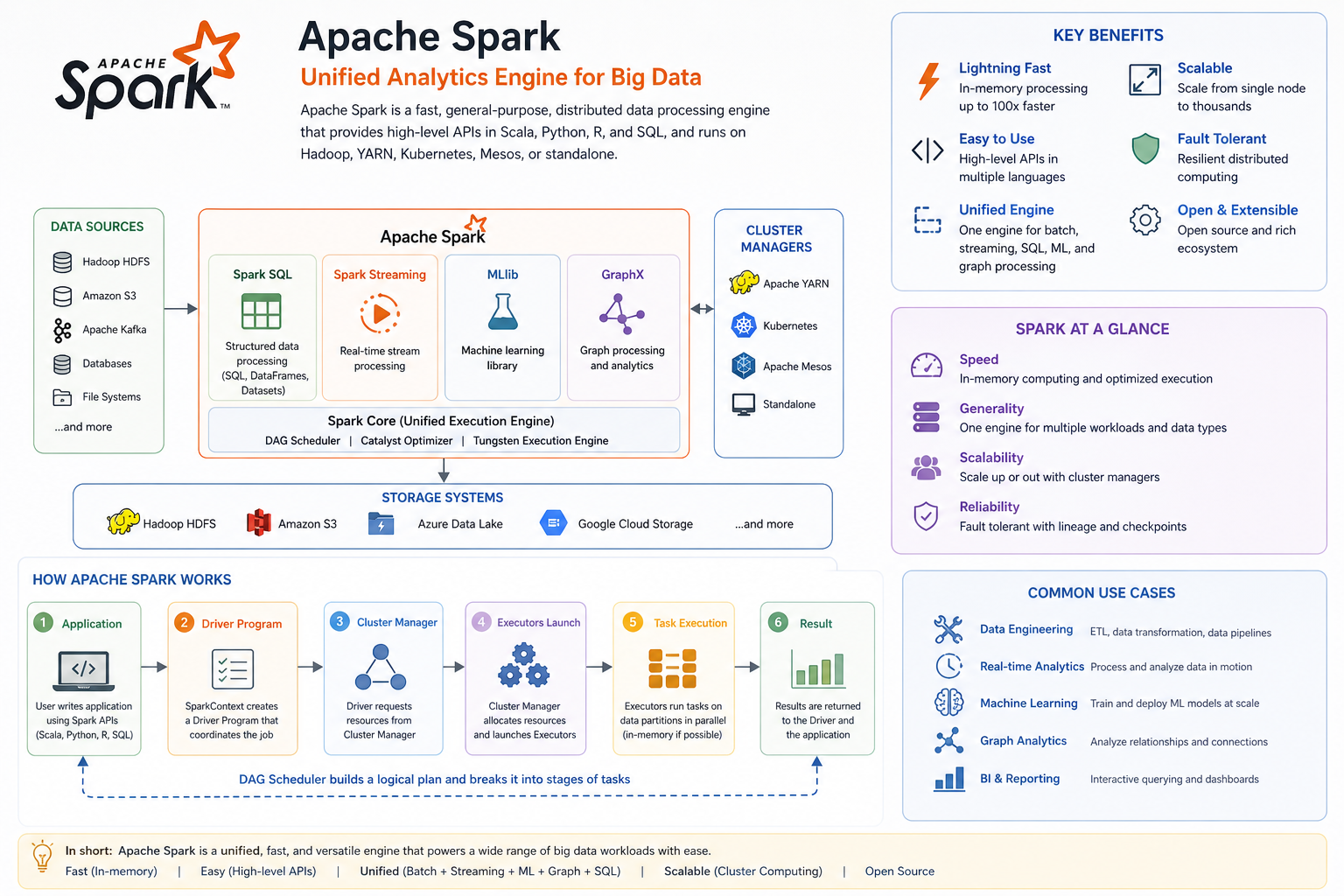
This lesson focuses on writing DataFrames to CSV files using Apache Spark. With the increasing need to manage large datasets efficiently, writing data in a structured format such as CSV is essential for data engineers. The CSV format allows for easy data sharing and integration with various systems, making it a popular choice for data storage. We will cover the basic syntax and explore various options available for CSV writing in Spark, along with best practices for managing output files.
Writing a DataFrame to CSV File
To write a DataFrame in Spark to a CSV file, you use the write method along with the csv() function. Here is the basic syntax:
# Writing a DataFrame to CSV
# df is the DataFrame being written
# 'output/path' is the directory where the CSV file will be created
df.write.csv('output/path')
This command triggers the process to write the DataFrame as CSV files to the specified directory. By default, Spark writes multiple part files based on the number of partitions in the DataFrame.
Writing with Options
Spark offers various options that can be specified while writing to a CSV file. Here are some commonly used options:
Header
You can include a header in your CSV output by using the header option:
df.write.option('header', 'true').csv('output/path')
Including the header is crucial as it retains the column names in the output file, making the data easier to understand when shared or imported elsewhere.
Delimiter
You can specify a custom delimiter for your CSV file using the delimiter option. The default delimiter is a comma, but it can be changed as follows:
df.write.option('delimiter', '|').csv('output/path')
In this example, the pipe character is specified as the delimiter.
Quote All
To ensure all fields are enclosed in quotes, you can set the quoteAll option:
df.write.option('quoteAll', 'true').csv('output/path')
This option can be useful when dealing with fields that may contain the delimiter or other special characters.
Overwrite vs Append Modes
When writing to CSV files, you can choose between different save modes:
- Overwrite: Replaces existing files in the output directory.
- Append: Adds new data to the existing files without deleting them.
You can specify the save mode using the mode option:
df.write.mode('overwrite').csv('output/path')
This command will overwrite any existing CSV files in the specified directory.
Controlling Number of Output Files
Spark writes data in parallel, leading to multiple output files, known as part files. If you want to control the number of output files, you can use the coalesce() or repartition() functions.
Coalesce
Using coalesce(n) will reduce the number of partitions to n, thus producing fewer output files:
df.coalesce(1).write.csv('output/path')
This will create just one part file for the output CSV. However, keep in mind that coalescing can lead to a performance hit due to the shuffling of data.
Repartition
If you wish to increase the number of files, repartition(n) can be used. This is typically more expensive than coalescing:
df.repartition(5).write.csv('output/path')
This will create five part files in the output directory.
Why Spark Writes Multiple Part Files
The default behavior of writing multiple part files arises from Spark's distributed nature. Each partition in Spark can be processed in parallel, which leads to multiple output files. Understanding this is crucial, particularly when logging, data exporting, or handling large datasets, as multiple files can generally be processed faster than a single monolithic file.
Writing a Single CSV File
If you need to write a single CSV file instead of multiple part files, you can use the coalesce() method before writing:
df.coalesce(1).write.csv('output/path')
This ensures that all the data is combined into one file, simplifying data management and consumption.
Folder Structure vs Single File Output
When you write CSV files in Spark, the output is saved in a folder by default. This folder will contain part files as well as other metadata files. If you opt to write a single CSV file using coalesce(1), it will still generate a directory with a single part file and related metadata. Understanding this folder structure is essential for organizing and retrieving your output data effectively.
Naming Conventions and File Organization
When Spark writes CSV files, it names them as part-xxxxx where xxxxx represents a unique identifier for each part file. For better organization:
- Use clear naming conventions for output directories.
- Include timestamps or job identifiers in directory names to prevent data overwriting.
- Manage old output by cleaning up previous runs.
Summary
In this lesson, we explored the process of writing DataFrames to CSV files in Apache Spark. We discussed various options such as including headers, specifying delimiters, and controlling the output file counts through coalesce() and repartition(). We also examined the implications of writing multiple part files, and how to effectively manage output files for clear organization. Mastering these techniques boosts your efficiency as a data engineer and prepares you to handle data management tasks in a production environment.