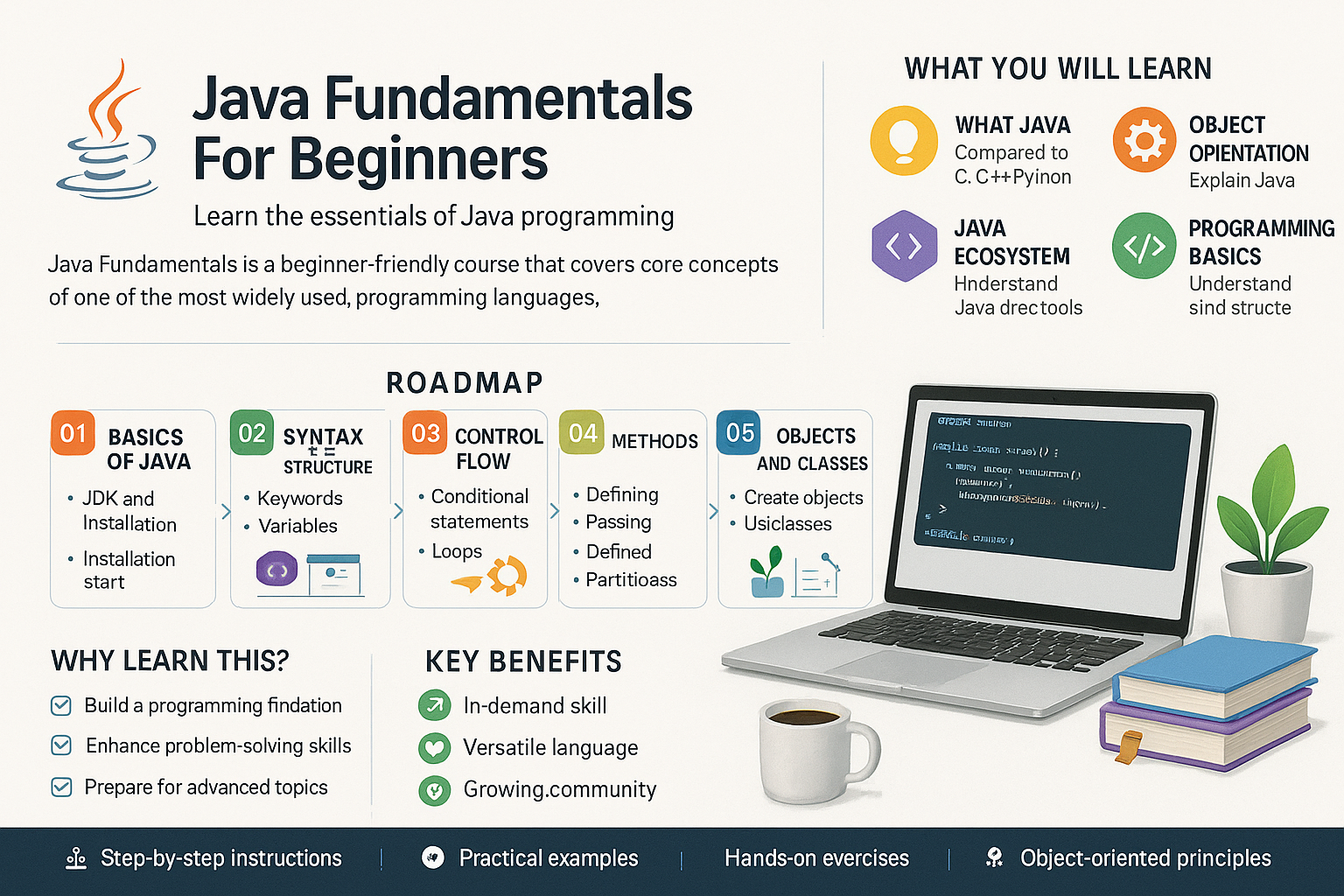
Introduction
In this lesson, we will cover the essential steps to get started with Java development by installing the Java Development Kit (JDK) and selecting an appropriate Integrated Development Environment (IDE). Understanding these foundational components is critical for writing, compiling, and executing Java programs effectively.
Understand the Purpose of JDK in Java Development
The Java Development Kit (JDK) is a vital component for Java developers as it includes everything needed to develop Java applications. It provides the tools required to compile Java code into bytecode (using the javac compiler), run Java applications (via the Java Runtime Environment), and includes libraries for development. Without the JDK, you would not be able to build Java applications.
Install the Java Development Kit (JDK) Successfully
To install the JDK, follow these steps:
- Download the JDK: Head over to the Oracle JDK Download Page or OpenJDK.
- Choose your OS: Select the version suitable for your operating system (Windows, macOS, or Linux).
- Run the installer: Follow the installation instructions. Typically, it includes accepting the license agreement and choosing installation paths.
Verifying Your Installation
Once installed, it's crucial to ensure that the JDK has been set up correctly. Open your command prompt (CMD) or terminal and run:
java -version
This command should display the installed JDK version.
Configure Environment Variables for JDK on Your System
For the JDK to be recognized globally on your system, environment variables must be configured:
For Windows:
- Search for ‘Environment Variables’ in the Start Menu and select ‘Edit the system environment variables.’
- Click on ‘Environment Variables.’
- In the ‘System variables’ section, click ‘New’ to create a new variable:
- Variable name:
JAVA_HOME - Variable value: Path where your JDK is installed (e.g.,
C:\Program Files\Java\jdk-11.0.1).
- Variable name:
- Find the
Pathvariable, clickEdit, and add a new entry:%JAVA_HOME%\bin
- Click OK and restart your command prompt.
For macOS/Linux:
Add the following lines to your ~/.bash_profile or ~/.bashrc:
echo 'export JAVA_HOME=/path/to/jdk' >> ~/.bash_profile

echo 'export PATH=$JAVA_HOME/bin:$PATH' >> ~/.bash_profile
source ~/.bash_profile
Replace /path/to/jdk with your actual JDK path.
Select and Install an Appropriate Integrated Development Environment (IDE)
An IDE provides a source code editor, build automation tools, and a debugger. Popular choices for Java development include:
- Eclipse: Great for enterprise applications; it supports plugins.
- IntelliJ IDEA: Offers excellent code assistance and integration features.
- NetBeans: Free and good for smaller projects.
In next lesson, I will explain how to install IntelliJ IDEA IDE and how to use it with Java.
Summary / Key Takeaways
In this lesson on Getting Started: Installing JDK and IDEs, you have learned:
- Purpose of the JDK: It is essential for developing and executing Java applications.
- Installing JDK: Detailed guidance on downloading and running the JDK installer.
- Configuring Environment Variables: Setting up
JAVA_HOMEand updating the systemPathvariable. - Choosing an IDE: Overview of popular IDEs available for Java development.
- Creating Your First Program: Instructions to write, run, and verify a simple Java program.
- Successful Program Execution: Validation through output confirmation.