Introduction
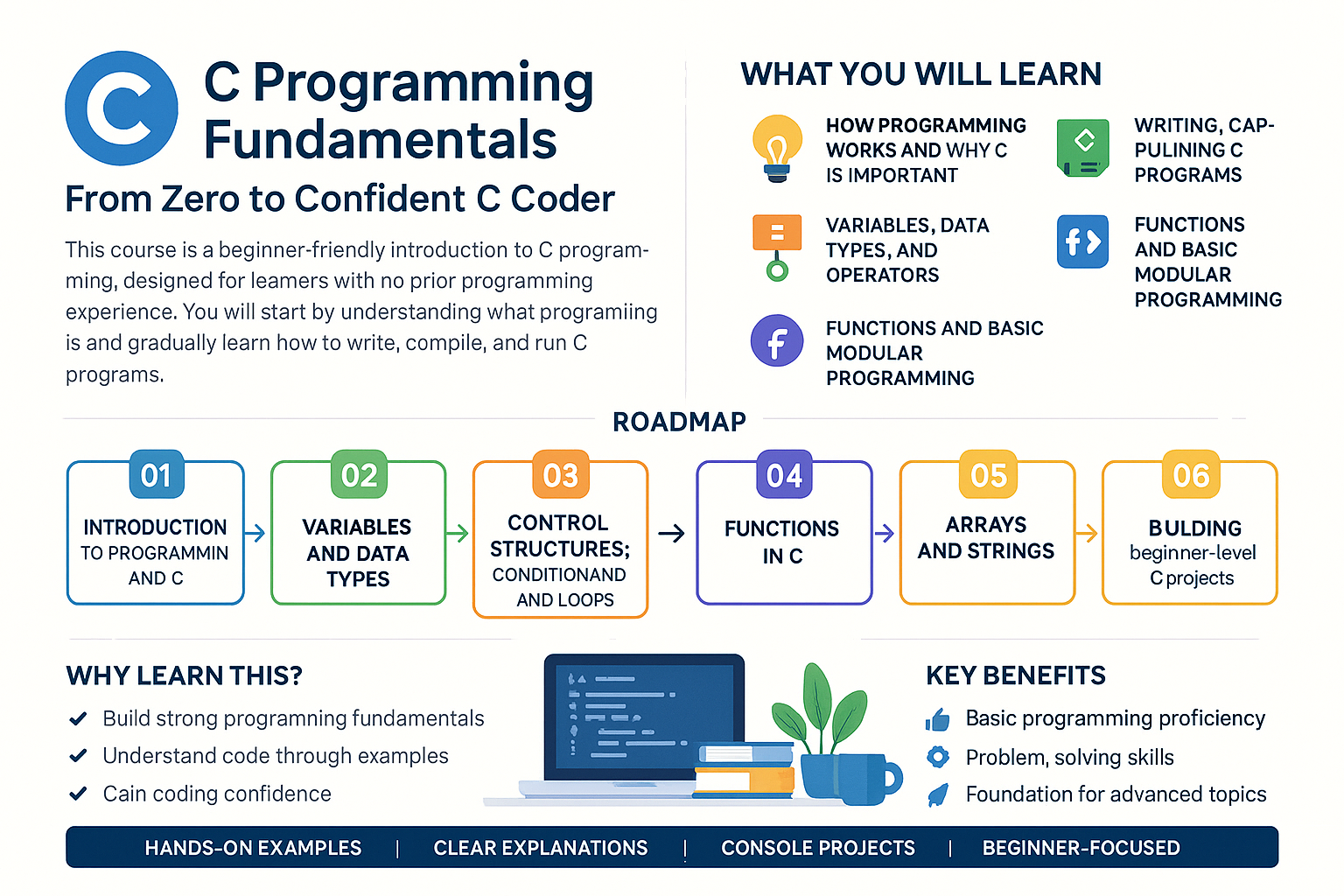
In this lesson, we will delve into setting up an efficient C programming environment essential for writing and compiling C code. By the end of this lesson, you will understand the basic concepts related to C programming, install both a C compiler and an integrated development environment (IDE), establish a simple project structure, create your first C program, and troubleshoot any common issues that may arise in the setup process.
Understanding C Programming's Basic Concepts and Terminology
Before diving into installations, it’s important to recognize key terminology that will be fundamental as you begin coding in C:
- Source Code: The written code that the programmer creates, which needs to be compiled into an executable form.
- Compiler: A program that translates the source code into an executable format that the computer can run.
- Integrated Development Environment (IDE): A software application that provides comprehensive facilities to programmers for software development. This typically includes a code editor, a compiler, and debugging tools.
- Executable: The binary file created after compilation that the operating system can execute.
Installing a C Compiler and IDE
Step 1: Choose a C Compiler
A popular choice for compiling C programs is GCC (GNU Compiler Collection). For Windows users, MinGW (Minimalist GNU for Windows) offers a great installation of GCC.
-
For Windows:
- Download the MinGW installation manager from MinGW official site.
- During installation, select the option to install the
gccandg++components.
-
For macOS:
- Install Xcode Command Line Tools by executing this command in your terminal:
```xcode-select --install ``` -
For Linux:
- Most distributions come with GCC pre-installed, or it can be installed with:
```bashsudo apt-get install build-essential ```
Step 2: Choose an IDE
Popular choices for C programming IDEs include Code::Blocks, Eclipse CDT, and Visual Studio Code. For beginners, Code::Blocks is user-friendly and straightforward.
- Installing Code::Blocks:
- Download the version that includes the MinGW bundle from the Code::Blocks website.
- Follow the installation instructions provided on the website.
Setting Up a Simple Project Structure for C Programming
Once the installations are complete, it’s time to set up a project structure:
- Create a Project Directory:
- Navigate to a suitable location on your hard drive and create a directory for your C projects, e.g.,
CProjects.
- Navigate to a suitable location on your hard drive and create a directory for your C projects, e.g.,
- Create a New Project in Your IDE:
- Open Code::Blocks and select
File>New>Project.... - Choose
Console Application, and follow the prompts to name your project and set the location in yourCProjectsdirectory.
- Open Code::Blocks and select
- Create a Source File:
- Inside your new project, add a new source code file, usually named
main.c, as this will be your starting point.
- Inside your new project, add a new source code file, usually named
Writing and Compiling Your First Basic C Program
Let’s write a simple Hello World program that demonstrates the basic syntax of C programming.
Example Code:
#include <stdio.h>

int main() {
    printf("Hello, World!\n");
    return 0;
}
Explanation:
#include <stdio.h>: This line includes the standard input-output library that allows us to use theprintffunction.int main(): The main function is the entry point of every C program.printf(): It prints the specified string to the console.return 0: Indicates that the program completed successfully.
Compiling the Program:
- In Code::Blocks, click on
Build>Build, or simply pressF9to compile your program. - If everything is set up correctly, you should see messages indicating a successful build.
Running the Program:
- Click on
Build>Run, or pressCtrl + F10to execute your program.
Expected Output:
Hello, World!
Troubleshooting Common Setup Issues in the C Environment
While setting up your C environment, you may encounter issues such as:
- Compiler Not Found: Ensure that the installation path of your compiler is added to the system PATH variable.
- IDE Configuration Errors: Check that the compiler settings are correctly configured in your IDE's settings (Settings > Compiler).
- Program Doesn’t Compile: Review your code for syntax errors or missing semicolons.
- Executable Not Running: Ensure you are in the correct directory in your command line or terminal and that the executable has not been blocked by antivirus software.
Summary / Key Takeaways
In this lesson on Setting Up the C Environment, you have learned:
- C Programming Basic Concepts: Familiarized yourself with essential terminology in C programming.
- Installing a Compiler and IDE: Successfully installed GCC and Code::Blocks or similar tools to prepare for coding.
- Project Structure Setup: Created a basic project structure that organizes your C programs effectively.
- Your First C Program: Written and compiled a simple Hello World program to demonstrate basic syntax.
- Troubleshooting: Identified common issues and their solutions in your C programming environment setup.